Make Public creates a new Public Smart Component from a Private one. The Public component is listed in the component tray and the Smart Components Hub for every Creator. The Build Agent prefers it when it reuses components. Use Make Public when a component the Build Agent built for one module is worth reusing across the environment.
The Private component is not converted. It stays in its module unless you delete it in the same step. For how the two states differ, see Public and Private.
A Private component belongs to the module that owns it. That module can place it any number of times, and no other module can place it. Make Public is how a component becomes reusable across modules.
What Make Public Does
Confirming the Make Public dialog does the following:
- Creates a new Public component with its own name. The new component is published immediately.
- Copies the Private component's definition and tests to the new component.
- Switches the instances you select to the new component. The other instances keep the Private component.
- Deletes the Private component when every instance switches and Delete private component is on.
- Saves the module. Unsaved module changes are saved first.
A Public component cannot become Private again. Public Smart Components are not versioned, so the new component is available on every branch and version. The instance switches and the deletion are module changes, so they save to the branch you have open.
Before You Begin
Making a component Public edits its module. The following must be true:
- The module is open for editing and you hold its lock.
- In a versioned application, you are on a branch. A published version cannot change, and an application without a branch must have one created first.
- Your role grants Create on Smart Components (Public) and Update on Smart Components (Private).
Delete private component displays only when your role also grants Delete on Smart Components (Private). Without that grant, the Private component always stays in its module.
From Module Builder, Make Public displays only while the module is open for editing and your role grants the permissions above.
Make a Component Public
You can begin in Module Builder or in the Smart Components Hub. Both open the same dialog in the module that owns the component.
To begin in Module Builder:
- Open the module that owns the Private component.
- Select the component on the canvas to open the Focused Component View.
- In the toolbar, click Make Public.
To begin in the Smart Components Hub:
- Click
 Libraries in the global header, then select
 Smart Components Hub.
- In the Explorer panel, select
 Dashboard.
- Above the component list, select Private. Public and Private display only when your role grants View on both Smart Components (Public) and Smart Components (Private).
- On the component's row, click
 (ellipsis) and select Make Public.
- In the Leaving the Smart Components Hub dialog, click Continue. The owning module opens with the Make Public dialog. In a versioned application, the module opens on the branch you last used.
If the module is not locked, a message asks you to lock it. The dialog opens once you do.
Make Public Dialog
The dialog title asks whether to make the named component public. The dialog has sections for the public component, the instances that switch, and the private component.
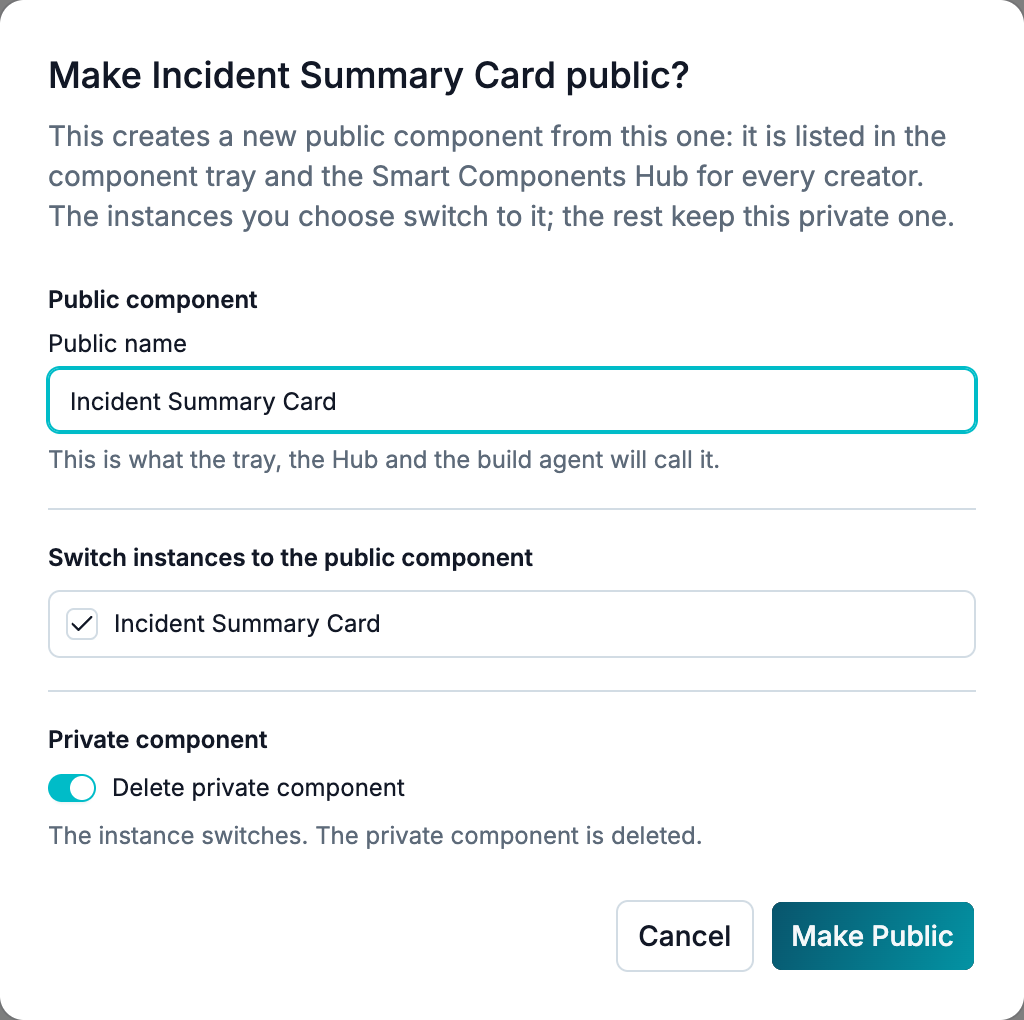
| Section | Description |
|---|---|
| Public component | The Public name field. It is prefilled with the Private component's name when no Public component uses that name. Otherwise it adds a number, like Address Form 2. If every numbered name is taken, the field keeps the Private name and you must enter another. Make Public is unavailable while the name is empty, used by a Public component, or still being checked. |
| Switch instances to the public component | One checkbox for each instance of the component in the module, all selected by default. Select all displays when there is more than one instance. Displays only when the module places the component. |
| Private component | The Delete private component switch, on by default, and a sentence that states what happens to the Private component. The switch is unavailable while any instance stays Private, because the Private component is still in use. |
A note at the bottom of the dialog states when the module has unsaved changes. Making the component Public saves those changes first.
Click Make Public to confirm. A message confirms that the component is now Public and in the component tray.
Outcomes
The sentence in the Private component section changes with your selections, as follows:
| Selection | Result |
|---|---|
| Every instance switches, and delete is on. | Every instance uses the Public component. The Private component is deleted. |
| Every instance switches, and delete is off. | Every instance uses the Public component. The Private component stays in the module, unused. |
| Some instances switch. | The selected instances use the Public component. The rest keep the Private component. |
| No instance switches. | The Private component stays as it is. The Public component is available in the tray. |
A deleted Private component can be brought back by restoring an earlier module revision. See Deleting Smart Components.
Troubleshooting
The first three messages display when you begin in the Smart Components Hub. The last three display from either starting point.
| Message | Cause and Resolution |
|---|---|
| A published version can't change. Switch to a draft to make this component public. | The module is open on a published version. Open a branch of the application, then try again. |
| This app has no branch yet. Create one to make this component public. | The application is versioned and has no branch. Create a branch, then try again. |
| Someone else is editing this module, so this component cannot be made public right now. | Another Creator holds the module lock. Wait for the lock to be released. |
| This Smart Component changed since it was loaded. Reload it and try again. | The component changed after the dialog opened. Reload the module and open the dialog again. |
| Some of the chosen placements are no longer in this module. Reload it and try again. | An instance you selected was removed after the dialog opened. Reload the module and open the dialog again. |
| The module did not save, so the component was not made public. Save the module and try again. | The module save failed, so nothing changed. Save the module, then open the dialog again. |
Changelog
| Date | Change |
|---|---|
| 2026-11-03 | Initial publication for 9.2. |